How to Set Up Hermes Agent on Proxmox (LXC + Docker + Telegram)
After my Grok Bot comparison, the self-hosted option kept coming up. I already covered running OpenClaw safely, so this time it’s the other big name: Hermes Agent from Nous Research.
Hermes is an open-source (MIT) agent you install on your own machine and talk to through Telegram, Discord and other chat apps. What sets it apart is its learning loop: it writes its own reusable skills when it solves something hard, keeps a persistent memory, and stores every session in a searchable SQLite database. It’s model-agnostic, so you can point it at Nous Portal, OpenRouter, OpenAI, Anthropic, Gemini or any OpenAI-compatible endpoint, including a local model.
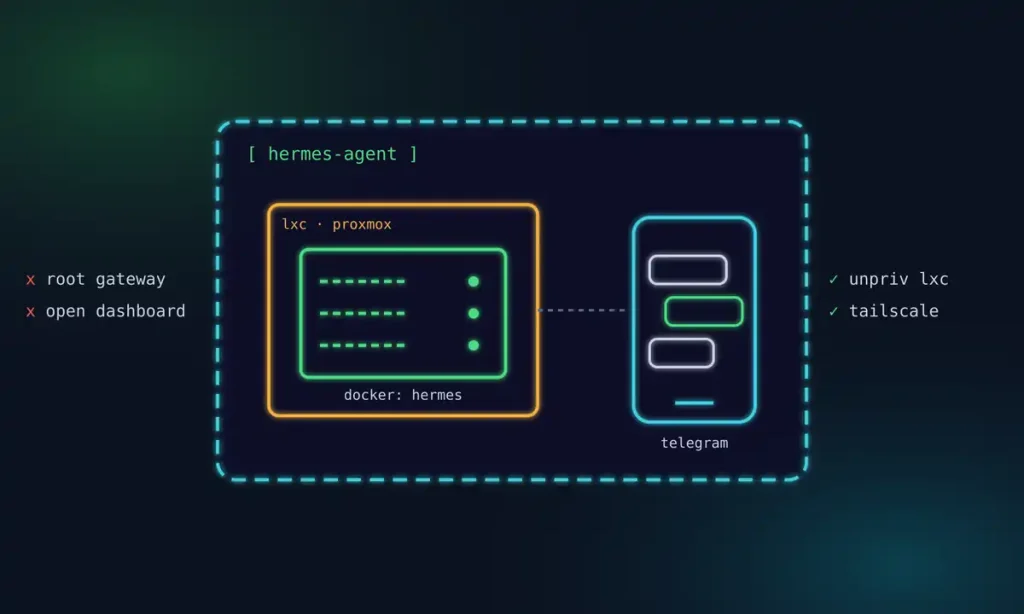
Here’s how I set it up in my Proxmox homelab: an unprivileged LXC, Docker inside it, Telegram as the chat interface, and nothing exposed to the internet.
What you need
- A Proxmox VE host
- An API key for a model provider (OpenRouter is the easiest way to try several models), or a Nous Portal account
- A Telegram account
- Optional but recommended: Tailscale, so you can reach the dashboard from anywhere without opening ports
Step 1: Create the LXC
Hermes is light at idle. 2 cores and 2 GB of RAM is enough to start, but I give it 4 GB so it doesn’t choke when it spins up subagents. Keep the container unprivileged, and turn on nesting and keyctl at creation time since we’re running Docker inside it. Changing those later means editing the config and rebooting.
From a shell on the Proxmox host, first check the exact template name you have:
pveam update
pveam available --section system | grep debian-12
pveam download local debian-12-standard_12.7-1_amd64.tar.zst
Then create and start the container (change the ID, storage and template name to match your setup):
pct create 120 local:vztmpl/debian-12-standard_12.7-1_amd64.tar.zst \
  --hostname hermes \
  --cores 2 --memory 4096 --swap 512 \
  --rootfs local-lvm:16 \
  --net0 name=eth0,bridge=vmbr0,ip=dhcp \
  --unprivileged 1 \
  --features nesting=1,keyctl=1 \
  --onboot 1

pct start 120
pct enter 120
If you don’t trust the agent’s code at all, use a VM instead. A VM is a stronger isolation boundary than an LXC.
Step 2: Install Docker and a non-root user
Inside the container:
apt update && apt install -y curl ca-certificates
curl -fsSL https://get.docker.com | sh

adduser hermes
usermod -aG docker hermes
su - hermes
Do everything from here on as the hermes user. The Hermes gateway refuses to start as root by default, and you want the data folder owned by a normal user anyway.
Step 3: Make a Telegram bot
- In Telegram, message @BotFather, send
/newbot, and follow the prompts. Copy the bot token it gives you. - Message @userinfobot to get your numeric Telegram user ID. You’ll use it so the bot only answers you.
Step 4: Run the setup wizard
mkdir -p ~/.hermes
chmod 700 ~/.hermes

docker run -it --rm \
  -v ~/.hermes:/opt/data \
  nousresearch/hermes-agent setup
The wizard asks for your model provider and API key, then walks you through adding a chat platform. Pick Telegram, paste the bot token, and add your user ID as the only allowed user. Everything gets saved to ~/.hermes, which the container sees as /opt/data. That folder holds your .env, config.yaml, sessions, memories, skills and cron jobs, so treat it like a password vault.
If you use Nous Portal, hermes setup --portal does a single sign-in that covers a model plus their web search, image generation, text-to-speech and browser tools.
Step 5: Run it with Docker Compose
Create ~/hermes/docker-compose.yml:
services:
  hermes:
    image: nousresearch/hermes-agent:latest
    container_name: hermes
    restart: unless-stopped
    command: gateway run
    ports:
      - "9119:9119"   # web dashboard
    volumes:
      - ~/.hermes:/opt/data
    environment:
      - HERMES_DASHBOARD=1
      - HERMES_DASHBOARD_BASIC_AUTH_USERNAME=${DASH_USER}
      - HERMES_DASHBOARD_BASIC_AUTH_PASSWORD=${DASH_PASS}
      - HERMES_DASHBOARD_BASIC_AUTH_SECRET=${DASH_SECRET}
    deploy:
      resources:
        limits:
          memory: 3G
          cpus: "2.0"
Put the dashboard login in ~/hermes/.env next to it:
DASH_USER=john
DASH_PASS=pick-a-long-password
DASH_SECRET=paste-output-of-openssl-rand-hex-32
Since the dashboard listens on the container’s network, Hermes requires a login for it and will refuse to start the dashboard without one. Basic auth is fine on your LAN or over Tailscale, but Nous says it isn’t meant for direct exposure to the internet. If you don’t need the dashboard, leave out the ports and HERMES_DASHBOARD lines entirely and just use Telegram.
Start it and watch the logs:
cd ~/hermes
chmod 600 .env
docker compose up -d
docker compose logs -f
Now message your bot in Telegram. If it answers, you’re up. The dashboard is at http://<lxc-ip>:9119.
Step 6: Updating
cd ~/hermes
docker compose pull
docker compose up -d
The image itself holds no data, so you can replace it freely. On start, Hermes migrates its config automatically and writes timestamped backups of config.yaml and .env first.
Step 7: Back it up
The whole point of Hermes is that it gets better over time, so losing ~/.hermes means losing everything it learned.
- Snapshot before changes. Take a Proxmox snapshot before
apt upgrade, image updates or compose edits so you can roll back. - Snapshots aren’t backups. They live on the same disk. Use Proxmox Backup Server on another box, or a nightly
vzdumpto an external disk. - Use snapshot mode for nightly jobs so the container keeps running and doesn’t miss Telegram messages.
- Test a restore once, before you actually need it.
Security checklist
- Don’t run the gateway as root, and don’t override the root check.
- Don’t forward the dashboard (9119) or API (8642) ports on your router. Use Tailscale or an SSH tunnel.
- Lock Telegram to your own user ID so strangers can’t drive your agent.
- Keep
~/.hermesatchmod 700. It holds your API keys. - Never run two gateway containers against the same data folder.
- Set a monthly spend limit with your model provider. An agent with scheduled jobs and subagents can burn through tokens fast.
- Be picky with community skills and MCP servers. Hermes has quarantine and audit tools for skills, but read what you install.
Hermes or OpenClaw?
Both do the same basic job: an always-on agent on your own hardware that you message from your phone. Hermes leans harder into learning over time, with self-written skills, long-term memory and full-text search of old sessions, and Nous pitches it as a better harness for open-source models. If you want to run a local or cheap open model and have the agent get smarter the longer it runs, Hermes is worth a look.
Sources: Hermes Agent Docker docs, DataCamp Hermes Agent tutorial, Hermify: Self-hosted AI agent on Proxmox, DeepSeek: Integrate with Hermes Agent.